Skip to content

Unlock the potential of your innovation project with our help guides and videos. Let’s get started.

Configuring your Sandpits

10
  • Sandpit limitations
  • Secure Sandpits: Overview
  • Sandpit control levels
  • How to add a SaaS Sandpit
  • How to simulate your local setup
  • How to connect to a Cloud Sandpit in AWS
  • How to add a Data Science Sandpit
  • How to add a Cloud Sandpit
  • How to upload local code to a Sandpit
  • How to add extra plugins to a Sandpit

Use Case Library

3
  • Machine Learning with AWS SageMaker
  • Exploring AI with NayaOne
  • Wealth management property valuations

Working with Fintechs

3
  • How to connect to a Fintech’s API
  • How to make requests to Fintechs
  • How to view a Fintech’s documentation

Using Data

4
  • How to connect a Dataset API
  • How to connect to a Dataset
  • How to change data request limits
  • How to test a Dataset with a Fintech’s API
  • Main website
  • Help Centre
  • I'm a developer
  • How to add a Data Science Sandpit
View Categories

How to add a Data Science Sandpit

How to set up, configure and launch your Data Science Sandpit.

How to add a Data Science Sandpit #

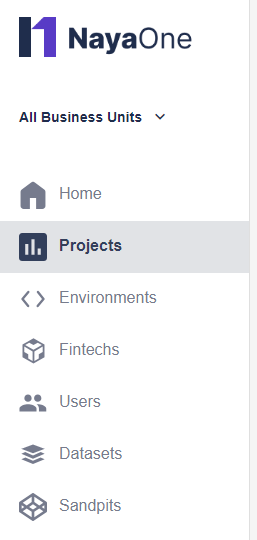
  1. Click Projects in the sidebar:
    Projects highlighted in sidebar
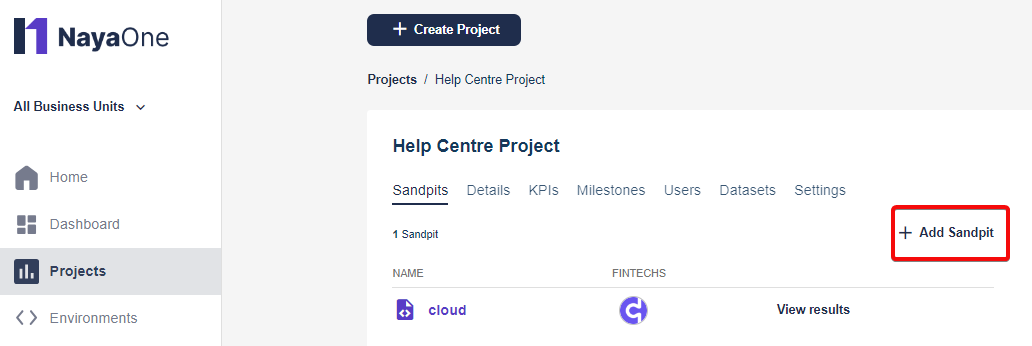
  2. Click to open the Project where you want to add a Sandpit
  3. Click +Add Sandpit:
    Add button
  4. Add the Fintech for the Sandpit (or click Skip if you haven’t chosen the Fintech):
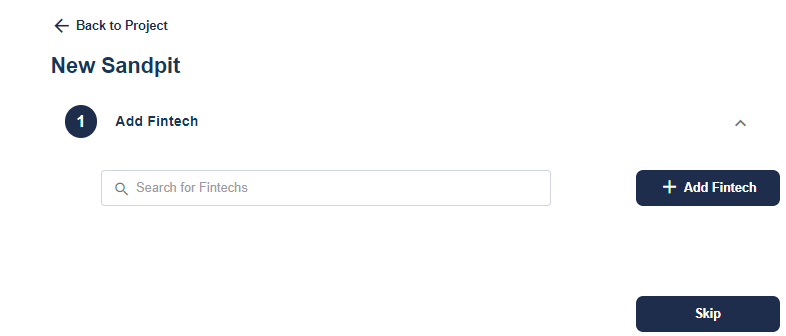
    Add fintech field
  5. Click Choose Sandpit type, select Data Science Sandpit, click Next:
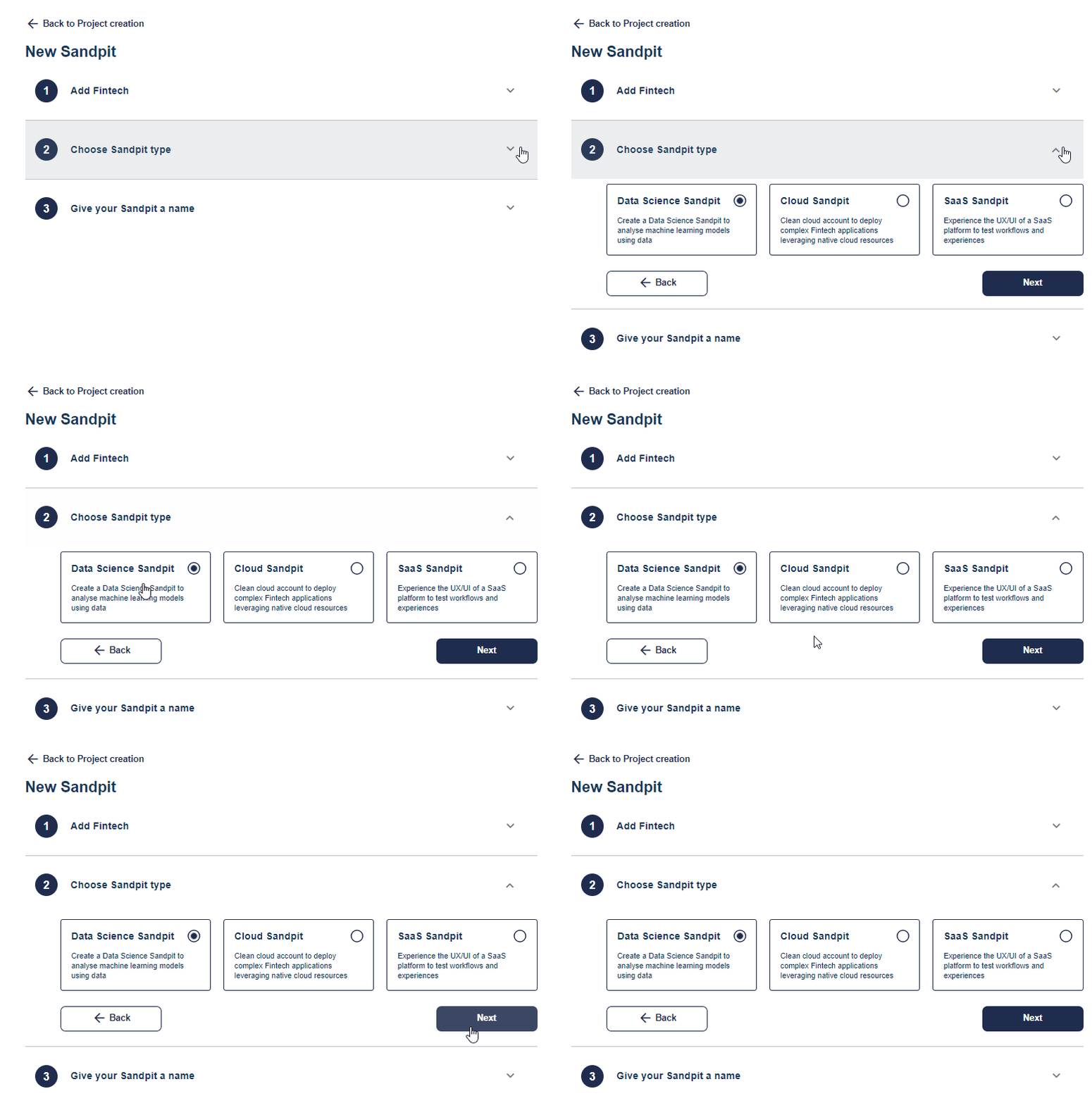
    data science radio button
  6. Enter a Sandpit name and click Add Sandpit:
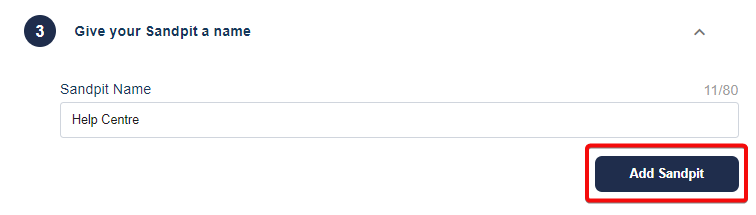
    Add Sandpit button
  7. The Data Science Sandpit now appears in your Sandpit list:
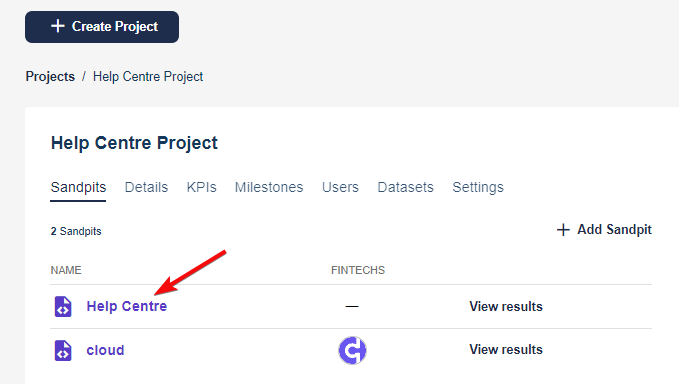
    List of Sandpits

How to request an API token in the Data Science Sandpit #

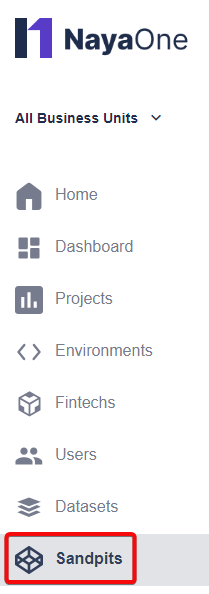
  1. Click Sandpits:
    Sandpits in sidebar
  2. Click the Sandpit you’ve created
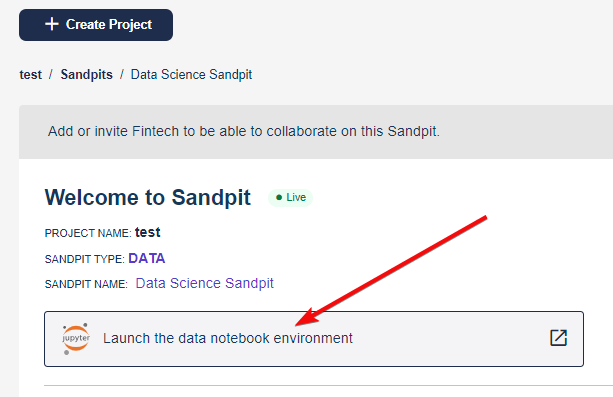
  3. Click Launch the data notebook environment:
    Button saying Launch the data notebook environment
  4. Click Token:
    token button
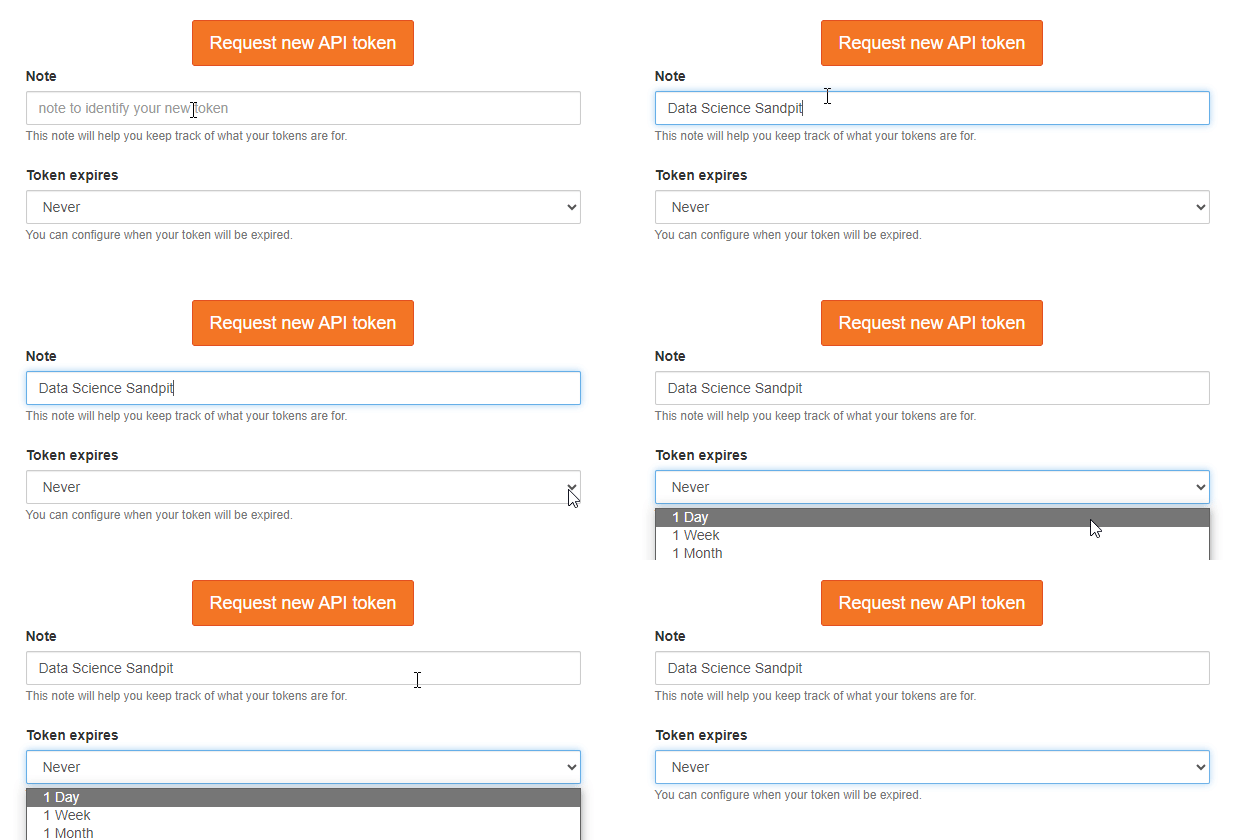
  5. Give the API a name, set its expiry, and click Request new API token:
    Request new API token button
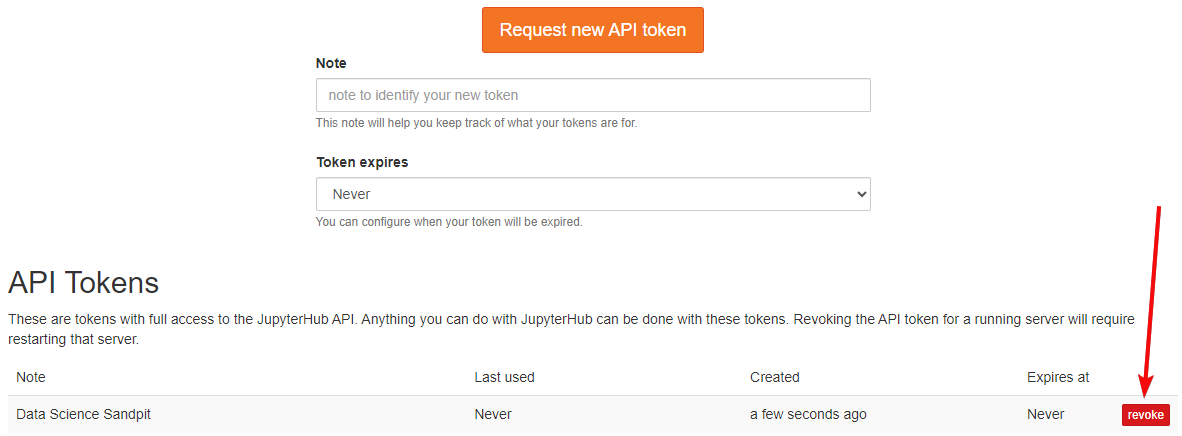
  6. Now when you click Token, you’ll see all tokens with full access to the JupyterHub API. Click Revoke to revoke the API token. If you’re revoking an API token for a running server, you’ll need to restart the server:
    revoke button

How to start the server #

  1. Click Sandpits:
    Sandpits in sidebar
  2. Click the Sandpit you’ve created
  3. Click Launch the data notebook environment:
    Button saying Launch the data notebook environment
  4. Click Start my server:
    start my server
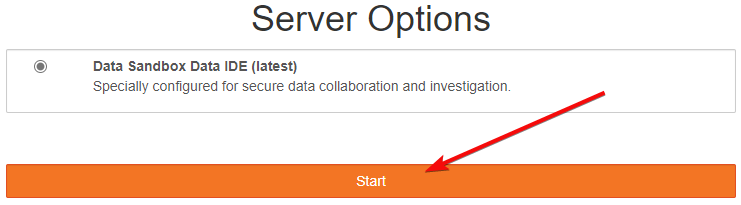
  5. You’ll see all the server options for the Sandpit. Select an option and click Start:
    start button
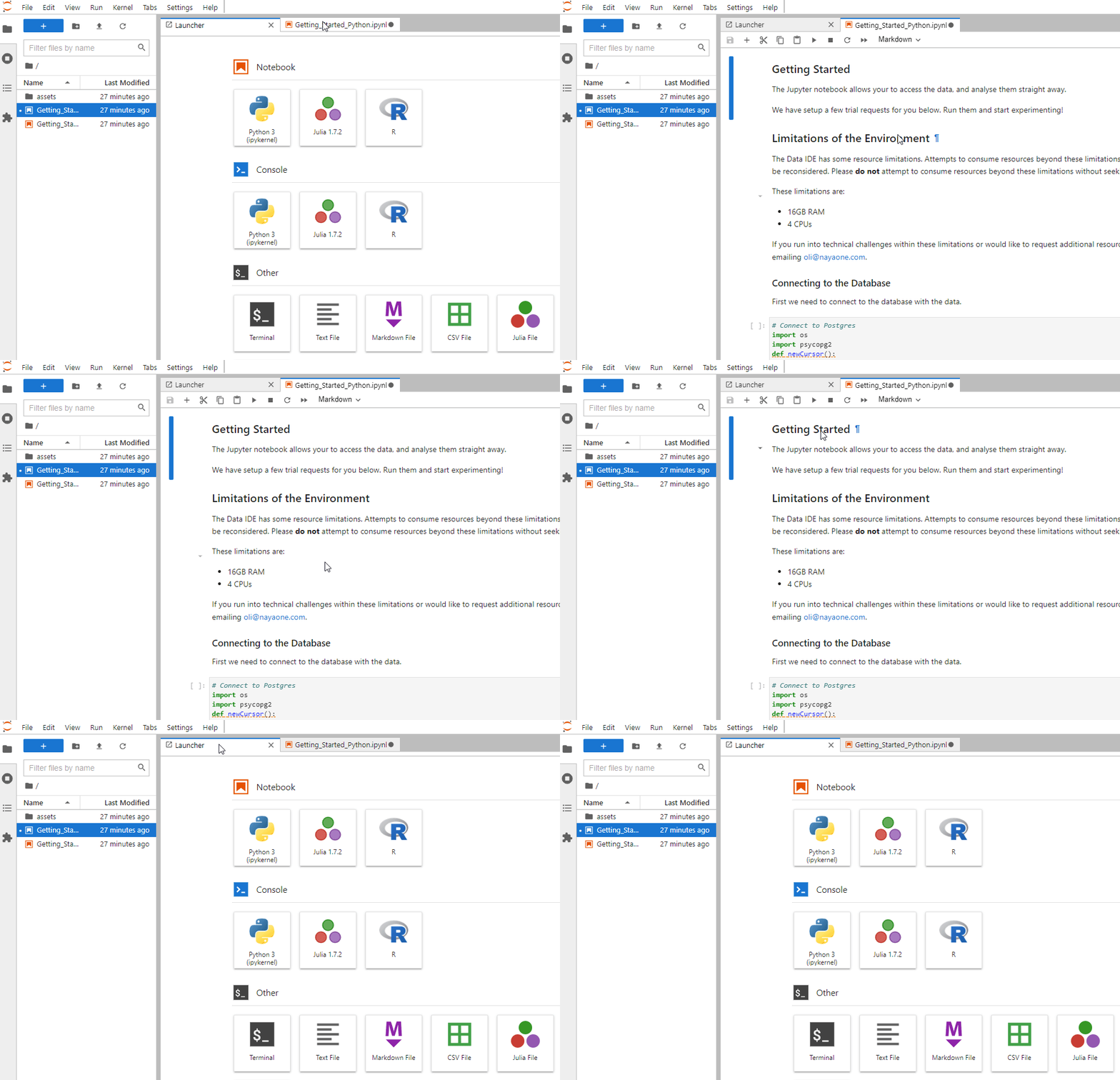
  6. You can now switch tabs between the Launcher and Getting Started documentation. This includes some trial requests:
    Jupyter notebook preview
Did this page answer your question?
This article covers:
  • How to add a Data Science Sandpit
  • How to request an API token in the Data Science Sandpit
  • How to start the server
NayaOne company logo

© 2019–2025 NayaOne. All rights reserved

NayaOne company logo
Manage Consent
To provide the best experiences, we use technologies like cookies to store and/or access device information. Consenting to these technologies will allow us to process data such as browsing behaviour or unique IDs on this site. Not consenting or withdrawing consent, may adversely affect certain features and functions.
Functional Always active
The technical storage or access is strictly necessary for the legitimate purpose of enabling the use of a specific service explicitly requested by the subscriber or user, or for the sole purpose of carrying out the transmission of a communication over an electronic communications network.
Preferences
The technical storage or access is necessary for the legitimate purpose of storing preferences that are not requested by the subscriber or user.
Statistics
The technical storage or access that is used exclusively for statistical purposes. The technical storage or access that is used exclusively for anonymous statistical purposes. Without a subpoena, voluntary compliance on the part of your Internet Service Provider, or additional records from a third party, information stored or retrieved for this purpose alone cannot usually be used to identify you.
Marketing
The technical storage or access is required to create user profiles to send advertising, or to track the user on a website or across several websites for similar marketing purposes.
  • Manage options
  • Manage services
  • Manage {vendor_count} vendors
  • Read more about these purposes
View preferences
  • {title}
  • {title}
  • {title}
NayaOne company logo
Manage Consent
To provide the best experiences, we use technologies like cookies to store and/or access device information. Consenting to these technologies will allow us to process data such as browsing behaviour or unique IDs on this site. Not consenting or withdrawing consent, may adversely affect certain features and functions.
Functional Always active
The technical storage or access is strictly necessary for the legitimate purpose of enabling the use of a specific service explicitly requested by the subscriber or user, or for the sole purpose of carrying out the transmission of a communication over an electronic communications network.
Preferences
The technical storage or access is necessary for the legitimate purpose of storing preferences that are not requested by the subscriber or user.
Statistics
The technical storage or access that is used exclusively for statistical purposes. The technical storage or access that is used exclusively for anonymous statistical purposes. Without a subpoena, voluntary compliance on the part of your Internet Service Provider, or additional records from a third party, information stored or retrieved for this purpose alone cannot usually be used to identify you.
Marketing
The technical storage or access is required to create user profiles to send advertising, or to track the user on a website or across several websites for similar marketing purposes.
  • Manage options
  • Manage services
  • Manage {vendor_count} vendors
  • Read more about these purposes
View preferences
  • {title}
  • {title}
  • {title}